Roblox is not just a game. It is a massive virtual universe where millions of players create, share, and inhabit unique worlds. Whether you want to build your own theme park, compete in high-stakes racing, or just hang out with friends, this platform offers something for everyone.
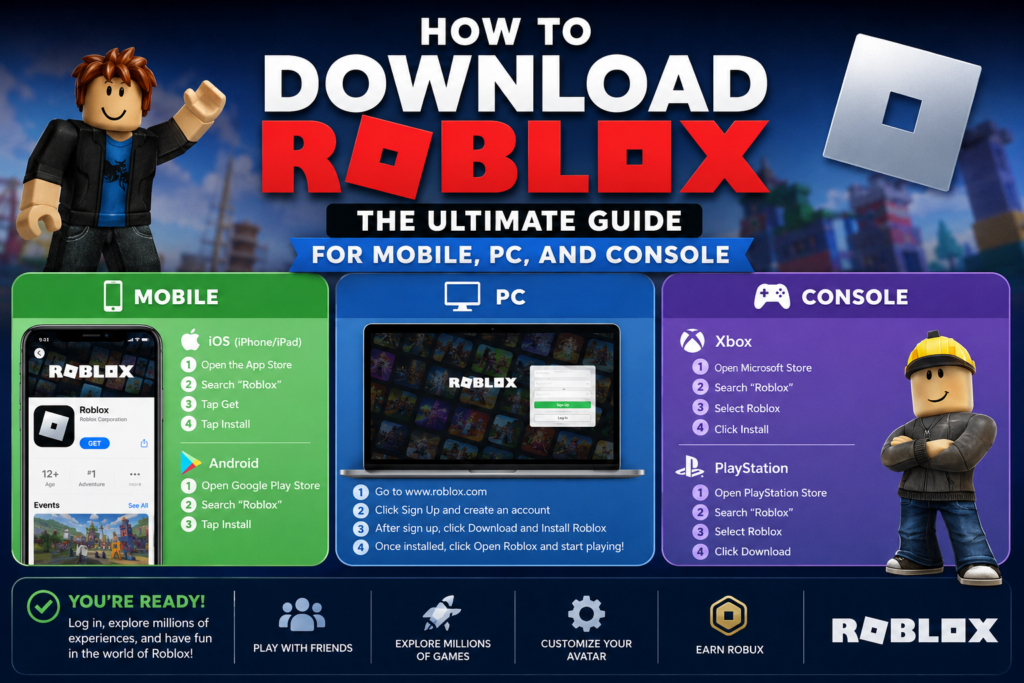
If you are ready to jump into the action, you need to know how to get the application on your device. This complete guide will walk you through the Roblox download process for every major platform, troubleshoot common issues, and get you playing in minutes.
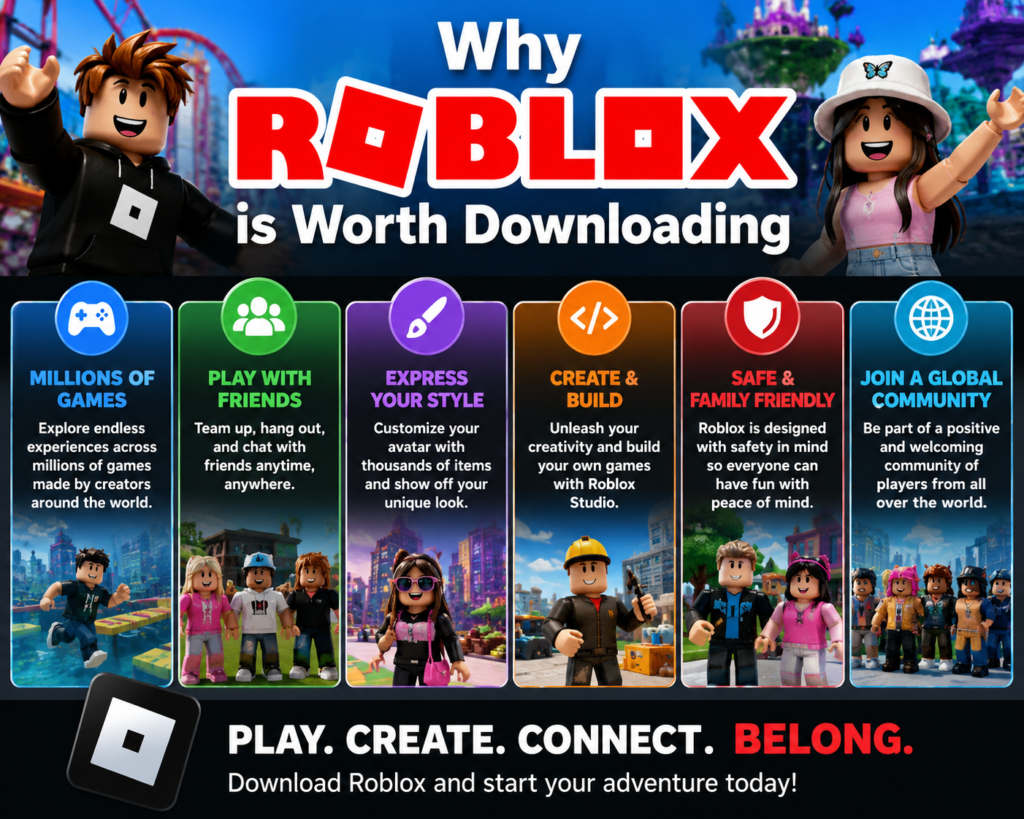
Why Roblox is Worth Downloading
Before looking at the installation steps, it helps to understand why this platform is so incredibly popular.
- Endless Variety: You never run out of things to do. Users create the games, meaning new content drops every single day.
- Cross-Platform Play: You can play on your computer while your friend plays on their phone.
- Creative Tools: The platform gives you free access to Roblox Studio, software that lets you build your own games and potentially earn virtual currency (Robux).
How to Download Roblox on Windows PC and Mac
Playing on a computer offers the best graphics and the most precise controls. The setup process is slightly different depending on your operating system.
Windows PC Installation Steps
- Open your internet browser and visit the official Roblox website.
- Log into your existing account or create a new one on the homepage.
- Choose any game that looks interesting and click the green Play button.
- A pop-up window will appear informing you that the player is installing.
- Once the file finishes downloading, open it to complete the installation.
- The game launcher will now open automatically whenever you click play on the website.
Alternatively, Windows 10 and 11 users can open the Microsoft Store, search for “Roblox,” and click the download button directly from there.
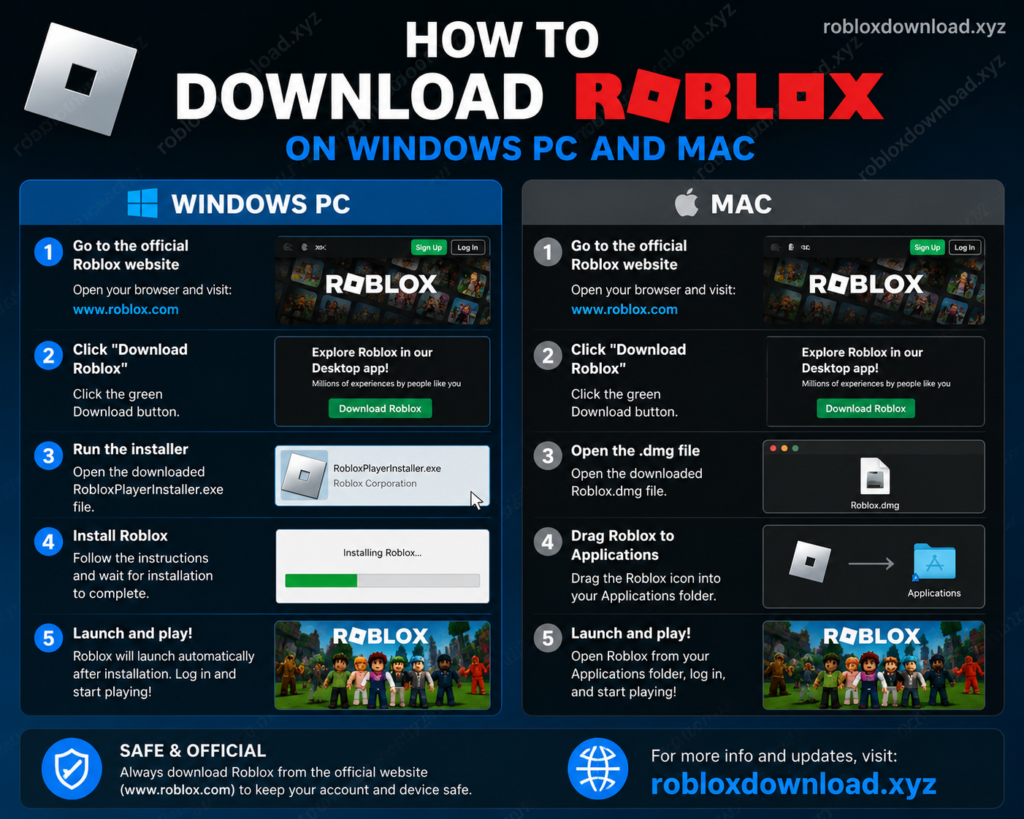
Mac Installation Steps
Head to the official website and log into your dashboard.
Select any game experience and click the green play icon.
Open your downloads folder and double-click the DMG file.
Follow the on-screen prompts to move the application into your Applications folder.
If you prefer gaming on the move, the mobile app is fully optimized for touch controls and works beautifully on both phones and tablets.
For Android Phones and Tablets
- Launch the Google Play Store app on your device.
- Type “Roblox” into the top search bar.
- Find the official app published by Roblox Corporation.
- Tap the Install button and wait for the download to finish.
- Open the app, sign in, and start playing.
For iPhones and iPads
- Open the Apple App Store on your iOS device.
- Use the search tab to look for the game.
- Tap the Get button next to the app icon.
- Verify the download using your FaceID, TouchID, or Apple password.
- Launch the app from your home screen once the installation finishes.
Downloading Roblox on Xbox and PlayStation
Console players can enjoy the experience on the big screen with full controller support.
Xbox Setup Guide
- Turn on your Xbox console and navigate to the Microsoft Store.
- Search for the game title using the search menu.
- Select the official game page and click Get (Free).
- The game will add to your queue and install in the background.
PlayStation Setup Guide
- Open the PlayStation Store from your PS4 or PS5 home screen.
- Use the magnifying glass icon to search for the game.
- Select the title from the results and click Download.
- Once the process completes, find the game in your library to start your session.
Minimum System Requirements for a Smooth Experience
To avoid lag and crashes, ensure your device meets these basic hardware specifications.
| Device Type | Minimum Requirements | Recommended Setup |
| Windows PC | Windows 7, 1.6Ghz Processor, 1GB RAM | Windows 10/11, Dedicated Graphics Card, 4GB+ RAM |
| Mac | macOS 10.13 (High Sierra) or higher | Latest macOS version |
| Android | Android OS 5.0 or higher | Android OS 10.0+ with strong internet |
| Apple iOS | iOS 11.0 or higher | Latest iOS device with an A-series chip |
Troubleshooting Common Download and Installation Issues
Sometimes things go wrong during the setup process. Here are the most common issues and how to fix them quickly.
The Installer Gets Stuck
If the progress bar stops moving, your antivirus software might be blocking the installation file. Temporarily disable your antivirus program, delete the corrupted download file, and try the process again.
Game Fails to Launch from Browser
Browser extensions can interfere with the game launcher code. Try clearing your browser cache, disabling ad-blockers, or switching to a different browser like Google Chrome or Microsoft Edge.
Connection Error Messages
The platform requires a stable internet speed of at least 4-8 Mbps. If you see connection errors, restart your internet router or switch from a wireless Wi-Fi connection to a wired ethernet cable.